| FAQ Table of Contents |
|
|
 Do I have to register? Do I have to register? |
|
Registration is not required to view current topics on the Forum; however, if you wish to post a new topic or reply to an existing topic registration is required. Registration is free and only takes a few minutes. The only required fields are your Username, which may be your real name or a nickname, and a valid e-mail address.
The information you provide during registration is not outsourced or used for any advertising by MaryJanesFarm Farmgirl Connection.
If you believe someone is sending you advertisements as a result of the information you provided through your registration, please notify us immediately. |
| Can I edit my profile? |
|
You may easily change any information stored in your registration profile by using the "profile" link located near the top of each page. Simply identify yourself by typing your Username and Password and all of your profile information will appear on screen. You may edit any information (except your Username). |
| What do I do if I forget or lose my password? |
|
Changing a lost password is simple, assuming that e-mail features are turned on for this forum. All of the pages that require you to identify yourself with your Username and Password carry a "lost Password" link that you can use to have a code e-mailed instantly to your e-mail address of record that will allow you to create a new password. Because of the Encryption that we use for your password, we cannot tell you what your password is. |
| Are cookies used? |
|
These Forums use cookies to store the following information: the last time you logged in, your Username and your Encrypted Password. These cookies are stored on your hard drive. Cookies are not used to track your movement or perform any function other than to enhance your use of these forums. If you have not enabled cookies in your browser, many of these time-saving features will not work properly. Also, you need to have cookies enabled if you want to enter a private forum or post a topic/reply.
You may delete all cookies set by these forums in selecting the "logout" button at the top of any page.
|
| How do I make a link (a.k.a. hyperlink) in my posts? |
|
You can easily add a hyperlink to your message. All that you need to do is type the URL (http://www.maryjanesfarm.org/snitz/), and it will automatically be converted to a URL (http://www.maryjanesfarm.org/snitz/)!
The trick here is to make sure you prefix your URL with the http://, https:// or file://
You can also add a mailto link to your message by typing in your e-mail address.
This Example:
farmgirlconnection@maryjanesfarm.org
Outputs this:
farmgirlconnection@maryjanesfarm.org
Another way to add hyperlinks is to use the [url]linkto[/url] tags
This Example:
[url]http://www.maryjanesfarm.org/snitz/[/url] takes you home!
Outputs This:
http://www.maryjanesfarm.org/snitz/ takes you home!
If you use this tag: [url="linkto"]description[/url] you can add a description to the link.
This Example:
Take me to [url="http://www.maryjanesfarm.org/snitz/"]MaryJanesFarm Farmgirl Connection[/url]
Outputs This:
Take me to MaryJanesFarm Farmgirl Connection
This Example:
If you have a question [url="farmgirlconnection@maryjanesfarm.org"]E-Mail Me[/url]
Outputs This:
If you have a question E-Mail Me
You can make clickable images by combining the [url="linkto"]description[/url] and [img]image_url[/img] tags
This Example:
[url="http://www.maryjanesfarm.org/snitz/"][img]farmgirl-connection-logo-TealRed.gif[/img][/url]
Displays This:

|
| How do I change the format of the text in my post (to make it bold or italic, to add color, etc.)? |
|
There are several Forum Codes you may use to change the appearance of your text. Following is a list of the codes currently available:
Bold: Enclose your text with [b] and [/b] . Example: This is [b]bold[/b] text. = This is bold text.
Italic: Enclose your text with [i] and [/i] . Example: This is [i]italic[/i] text. = This is italic text.
Underline: Enclose your text with [u] and [/u]. Example: This is [u]underline[/u] text. = This is underline text.
Aligning Text Left: Enclose your text with [left] and [/left]
Aligning Text Center: Enclose your text with [center] and [/center]
Aligning Text Right: Enclose your text with [right] and [/right]
Striking Text: Enclose your text with [s] and [/s]
Example: [s]mistake[/s] = mistake
Horizontal Rule: Place a horizontal line in your post with [hr]
Example: [hr] =
Font Colors:
Enclose your text with [fontcolor] and [/fontcolor]
Example: [red]Text[/red] = Text
Example: [blue]Text[/blue] = Text
Example: [pink]Text[/pink] = Text
Example: [brown]Text[/brown] = Text
Example: [black]Text[/black] = Text
Example: [orange]Text[/orange] = Text
Example: [violet]Text[/violet] = Text
Example: [yellow]Text[/yellow] = Text
Example: [green]Text[/green] = Text
Example: [gold]Text[/gold] = Text
Example: [white]Text[/white] = Text
Example: [purple]Text[/purple] = Text
Headings: Enclose your text with [hnumber] and [/hn]
|
Example: [h1]Text[/h1] =
|
Text
|
|
Example: [h2]Text[/h2] =
|
Text
|
|
Example: [h3]Text[/h3] =
|
Text
|
|
Example: [h4]Text[/h4] =
|
Text
|
|
Example: [h5]Text[/h5] =
|
Text
|
|
Example: [h6]Text[/h6] =
|
Text
|
Font Sizes:
Example: [size=1]Text[/size=1] = Text
Example: [size=2]Text[/size=2] = Text
Example: [size=3]Text[/size=3] = Text
Example: [size=4]Text[/size=4] = Text
Example: [size=5]Text[/size=5] = Text
Example: [size=6]Text[/size=6] = Text
Bulleted List: [list] and [/list], and items in list with [*] and [/*].
Ordered Alpha List: [list=a] and [/list=a], and items in list with [*] and [/*].
Ordered Number List: [list=1] and [/list=1], and items in list with [*] and [/*].
Code: Enclose your text with [code] and [/code].
Quote: Enclose your text with [quote] and [/quote].
|
| How do I add images to my posts? |
|
To place an image in your post, all you need to do when editing your post is find the image upload button, pictured below.
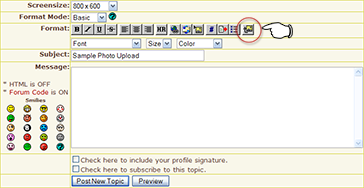
If you're using the Quick Reply feature at the bottom of each topic, you can find the button next to the word "Message" in the upper left, as depicted.
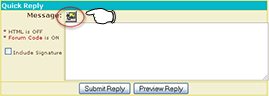
After clicking the button, a small window will pop up. (Pop-ups must be allowed for our site, or you must allow this pop-up.) Browse your computer for the image you wish to upload, select it, and click upload.
That's it! There stands your image, all bright and shiny. Well, alright, the code will be there now anyway, and if you preview your post, you can see the images as well.
NOTE: The rest of this section is for those of you who may need to (or want to) place images manually.
First you'll need the URL for your image (the place it can be found on the web; if you paste the URL into the address bar of your browser, the browser should show your picture). Paste your image's URL into your post, then enclose it with one of the following Forum Code tags:
- [img] and [/img]
- [img=right] and [/img=right] (to align the image to the right)
- [img=left] and [/img=left] (to align the image to the left)
When it's finished, it should look like this:
[IMG]http://example.com/images/yourimage.jpg[/IMG]
If you want to make your picture link to somewhere, it should look like this:
[URL="http://example.com/images/yourimage.jpg"][IMG]http://example.com/images/yourimage.jpg[/IMG][/URL]
If you copy the image link from other image hosting services, use the “Forum” or “BBCode”. Those use the standard BBCode that you'll need. However, Snitz can't read the standard code for the [URL] tag. So, if you want to use other imaging hosting websites, make sure your code looks just like either example given above. The text between the opening image tag [IMG] and the closing image tag [/IMG] should be filled in with your image's specific location and filename; and if you're linking your image to somewhere else, the link within the [URL] tag, after the =, should have quotation marks around it. If you want Snitz to actually display everything correctly, you may have to add them manually. If you don't, the URL will show up and make your post look all weird, even though your image will still show up.
If there are issues with your images showing up on the forum, first edit your post to check to make sure the [IMG] code is correct. Then make sure your photos are still available on the web. There may be temporary connection issues. If everything looks all hunky-dory, please let us know and we'll see what we can see. |
| Can I attach files? |
|
For security reasons, you may not attach files to any posts. However, you may cut and paste text into your post. |
| How can I use smilies (a.k.a. emoticons)? |
|
You've probably seen others use smilies before in e-mail messages or other bulletin
board posts. Smilies are keyboard characters used to convey an emotion, such as a smile
 or a frown or a frown
 . This bulletin board
automatically converts certain text to a graphical representation when it is
inserted between brackets []. Here are the smilies that are currently
supported by MaryJanesFarm Farmgirl Connection: . This bulletin board
automatically converts certain text to a graphical representation when it is
inserted between brackets []. Here are the smilies that are currently
supported by MaryJanesFarm Farmgirl Connection:
|
smile |
[:)] |
 |
big smile |
[:D] |
 |
cool |
[8D] |
 |
blush |
[:I] |
 |
tongue |
[:p] |
 |
evil |
[}:)] |
 |
wink |
[;)] |
 |
clown |
[:o)] |
 |
black eye |
[B)] |
 |
eightball |
[8] |
|
|
frown |
[:(] |
 |
shy |
[8)] |
 |
shocked |
[:0] |
 |
angry |
[:(!] |
 |
dead |
[xx(] |
 |
sleepy |
[|)] |
 |
kisses |
[:X] |
 |
approve |
[^] |
 |
disapprove |
[V] |
 |
question |
[?] |
|
|
| Can I use a personalized signature in my posts? |
|
You may attach signatures to the end of your posts when you post either a New Topic or Reply. Your signature is editable by clicking on "profile" at the top of any forum page and entering your Username and Password.
NOTE: HTML can't be used in Signatures. |
| Can I edit my own posts? |
|
You may edit or delete your own posts at any time. Just go to the topic where the post to be edited or deleted is located and you will see an edit or delete icon (  ) on the line that begins "posted on..." Click on this icon to edit or delete the post. No one else can edit your post, except for the forum Moderator or the forum Administrator. A note is generated at the bottom of each edited post displaying when and by whom the post was edited. ) on the line that begins "posted on..." Click on this icon to edit or delete the post. No one else can edit your post, except for the forum Moderator or the forum Administrator. A note is generated at the bottom of each edited post displaying when and by whom the post was edited. |
| Am I able to search old posts? |
|
You may search for specific posts based on a word or words found in the posts, user name, date, and particular forum(s). Simply click on the "search" link at the top of most pages. |
| Can I be notified by e-mail when there are new posts? |
|
Yes, the Subscription feature allows you to subscribe to the entire Board, individual Categories, Forums and/or Topics, depending on what the administrator of this site allows. You will receive an e-mail notifying you of a post that has been made to the Category/Forum/Topic that you have subscribed to. There are four levels of subscription:
- Board Wide Subscription
If you can subscribe to an entire Board, you'll get a notification for any posts made within all the forums inside that board.
- Category Wide Subscription
You can subscribe to an entire Category, which will notify you if there was any posts made within any topic, within any forum, within that Category.
- Forum Wide Subscription
If you don't want to subscribe to an entire Category, you can subscribe to a single forum. This will notify you of any posts made within any topic, within that forum.
- Topic Wide Subscription
More conveniently, you can subscribe to just an individual topic. You will be notified of any post made within that topic.
Each level of subscription is optional. The administrator can turn On/Off each level of subscription for each Category/Forum/Topic.
To Subscribe or Unsubscribe from any level of subscription, you can use the "My Subscriptions" link, located near the top of each page to manage your subscriptions. Or you can click on the subscribe/unsubscribe icons (  ) for that Category/Forum/Topic you want to subscribe/unsubscribe to/from. ) for that Category/Forum/Topic you want to subscribe/unsubscribe to/from.
|
| What does it mean if a forum has Moderation enabled? |
|
Moderation: This feature allows the Administrator or the Moderator to "Approve", "Hold" or "Delete" a users post before it is shown to the public.
Approve: Only the administrators or the moderators will be able to approve a post made to a moderated forum. When the post is approved, it will be made viewable to the public.
Hold: When a user posts a message to a moderated forum, the message is automatically put on hold until a moderator or an administrator approves of the post. No one will be able to view the post while it is put on hold.
NOTE: Authors of the post will be able to edit their post during this mode.
Delete: If the administrator or moderator chooses this option, the post will be deleted and an e-mail will be sent to the poster of the message, informing them that their post was not approved. The administrator/moderator will be able to give their reason for not approving the post in the e-mail.
|
| What are moderators? |
|
Moderators control individual forums. They may edit, delete, or prune any posts in their forums. If you have a question about a particular forum, you should direct it to your forum moderator. |
| Are my posts ever censored? |
|
The Forum does censor certain words that may be posted; however, this censoring is not an exact science, and is being done based on the words that are being screened, so certain words may be censored out of context. By default, words that are censored are replaced with asterisks. |
| What is COPPA? |
|
The Children's Online Privacy Protection Act and Rule apply to individually identifiable information about a child that is collected online, such as full name, home address, e-mail address, telephone number or any other information that would allow someone to identify or contact the child. The Act and Rule also cover other types of information—for example, hobbies, interests and information collected through cookies or other types of tracking mechanisms—when they are tied to individually identifiable information. More information can be found here. |
| Can I set up my own Snitz forum? |
|
The most recent version of Snitz Forums can be downloaded at forum.snitz.com.
NOTE: The software is highly configurable, and the baseline Snitz Forum may not have all the features this forum does. |



